Keeping 2D Pixel Art Sprites Right in a 3D Tactics RPG
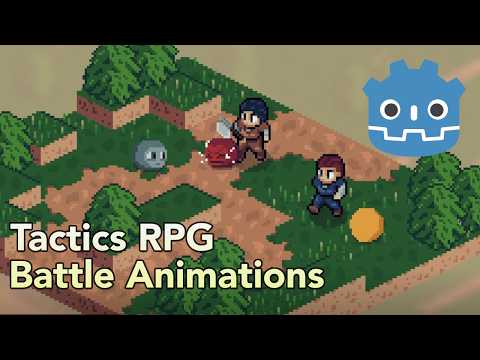
In my last post I wrote about rebuilding the grid and pathfinding when I moved my tactics RPG's battles from 2D to 3D. That covered where units can go. This post covers the other half: making flat pixel-art characters actually look right once they're standing on a 3D map.
The maps are 3D now, but the characters are still the same 2D sprite sheets I drew for the old version. I didn't want to redraw them, and I still want them to read as pixel art. Getting there turned out to be a series of small problems, each one only visible once the previous one was fixed.
This is an early stage implementation that's working well for the battles I've built so far, but there's definitely room for improvement — particularly in how sprites overlap with tall scenery and how many facing directions the art supports.
The Setup
Each unit's sprite is an AnimatedSprite3D: a flat, textured rectangle placed in the 3D world. A few settings do most of the work of keeping it looking like pixel art:
// One sprite pixel = 1/16 of a world unit, so every character pixel
// is the same size on screen as every other character's
sprite.PixelSize = 0.0625f;

// Nearest-neighbour keeps pixels crisp instead of blurring them
sprite.TextureFilter = BaseMaterial3D.TextureFilterEnum.Nearest;

// Pixel art already has its lighting painted in
sprite.Shaded = false;

// A flat rectangle casts a rectangle-shaped shadow, which doesn't look like a character.
// The shadows are painted into the sprite sheets instead.
sprite.CastShadow = GeometryInstance3D.ShadowCastingSetting.Off;
The camera is orthographic, which means no perspective: things don't get smaller as they get further away. That matches how the old 2D isometric view looked, and it matters for a lot of the maths later in this post.
Problem 1: Sprites Getting Sliced by the Map
A sprite has to face the camera, or you'd see it edge-on as the camera turns. Godot calls this billboarding, and my first attempt used full billboarding, where the sprite turns to face the camera completely, including tilting back when the camera looks down.
That caused a very visible problem. A character is about 2 world units tall, standing on cells that are 1.5 units wide. When the sprite tilts back to face a camera looking down, its top half leans into whatever is behind it: a cliff, a tree, another floor. The depth test does its job and hides the part of the sprite that's "inside" the scenery, so characters looked like they'd been cut in half.
I tried a few fixes before landing on one I'm happy with:
- Turning off the depth test for sprites. No more slicing, but now characters draw on top of everything, including trees they're standing behind. That's a worse lie than the slicing.
- A custom shader that writes the depth of the unit's cell so the whole sprite is hidden or shown together. It looked right in principle, but a unit behind a bush shorter than itself would disappear completely. It also would have meant rebuilding sprite animation inside the shader.
- Y-billboarding. The sprite only rotates around the vertical axis. It turns to face the camera as you orbit around the map, but it always stays upright, so it never leans into the scenery behind it.
Y-billboarding was the one that worked. I also limited how far the camera can tilt: between looking straight across the map and 45 degrees down. Characters didn't read well from much closer to overhead anyway.
This is a mitigation rather than a true fix. The rectangles can still pass through scenery; it just isn't visible at the angles the camera allows. If I add much taller props later, I'll probably need to revisit it.
Problem 2: Feet That Don't Touch the Ground
A 3D sprite is centred on its position, but I want a unit's position to be where its feet are, on the ground of its cell. So the sprite needs lifting by half its height.
That's almost right. My sprite sheets have the character's shadow painted into the bottom rows of each frame, so lifting by exactly half the frame height puts the bottom of the shadow on the ground, with the character's feet hovering a few pixels above it. Each unit stores how many shadow rows its art has, and the sprite is lowered by that much:
private void AlignFeetToGround()
{
    var frameHeight = CurrentFrameTexture().GetSize().Y;

    // Lift by half the frame so the bottom edge sits on the ground,
    // then lower by the painted shadow so the feet land on the cell, not the shadow
    sprite.Offset = new Vector2(0, frameHeight / 2f - unit.ShadowHeight);
}
The first version calculated this once, from the idle animation. Then I noticed some attacks looked like the character was sinking into the floor. It turned out my sprite sheets aren't all the same size: a sword attack frame is taller than an idle frame, to fit the swing. With the idle offset still applied, the taller frame hung below the ground and the map hid the character's lower body.
The fix was to recalculate the offset every time the animation or frame changes. The AnimationPlayer swaps animations on the sprite directly, so nothing else in my code knows when a taller sheet has come in. The sprite itself does, so I listen to its own signals:
sprite.AnimationChanged += AlignFeetToGround;
sprite.FrameChanged += AlignFeetToGround;
It also means sheets can be any height, as long as the character's feet stay the same distance from the bottom of the frame within each sheet.
This replaced a whole system from the 2D version, where every unit had hand-tuned pixel offsets per floor to fake standing on a higher level. Now the unit's height comes straight from the cell it's standing on.
Problem 3: Which Way Is a Unit Facing?
My characters have four sprite directions, all diagonals: down-left, down-right, up-left, and up-right. In the 2D version, the camera never moved, so "which sprite is showing" and "which way the unit is facing" were the same thing.
Once the camera can rotate, they aren't. If a unit faces a tree and I orbit the camera 180 degrees around the map, the unit should still be facing the tree. From the new angle, that means showing its opposite sprite.
So I split facing into two separate ideas:
- World facing is gameplay data. It's one of four grid directions, and it's only set by gameplay: moving, attacking, cutscenes, and the facing each unit starts the battle with. Turning the camera never changes it.
- The sprite shown is a rendering detail, worked out from world facing and the current camera angle.
// The map's camera starts at 45 degrees, which is the angle the sprites were drawn for
public const float BaseCameraYaw = 45f;

// Turning the camera one way swings a fixed world direction the other way on screen
public static Vector2 ToScreenFacing(Vector2 worldFacing, float cameraYawDegrees)
{
    return worldFacing.Rotated(Mathf.DegToRad(cameraYawDegrees - BaseCameraYaw));
}

public void RefreshSprite()
{
    var screenFacing = ToScreenFacing(unit.WorldFacing, camera.YawDegrees);

    // The animation tree picks whichever of the four drawn directions is closest
    animationTree.Set("parameters/Idle/BlendSpace2D/blend_position", screenFacing);
}
At the starting camera angle, the rotation is zero, so all the facings I'd already set up in the editor stayed correct.
Every unit needs to update when the camera turns, so the camera raises an event and each unit's animator listens for it:
camera.YawChanged += RefreshSprite;
The rule I've tried hardest to protect is that gameplay never reads the sprite direction. When a unit is attacked, whether it plays a shield block depends on whether it's facing the attacker. If that check used the sprite on screen, you could change whether a unit blocks just by rotating the camera. It always compares against world facing instead.
Rather than trust the rotation direction I'd worked out on paper, I checked it against a landmark: a unit facing an enemy, rendered at two camera angles, to confirm the sprite turned the right way.
With only four drawn directions and a smoothly rotating camera, sprites visibly "pop" to a new direction partway through a rotation. I thought I might need to lock the camera to fixed angles because of it, but after playing with it, the popping looked fine to me, so I left the camera free. At some angles the diagonal sprites don't line up well with the grid, though, and that's something the camera helps with. I cover that in the battle camera post.
Problem 4: Characters Leaning When the Camera Tilts
After Y-billboarding, sprites stayed upright and stopped getting sliced. But something still looked off at steeper camera angles: the characters looked squashed, as if they were leaning back.
This one is easier to see with a little bit of maths. The sprite is an upright rectangle. When an orthographic camera looks down at an angle, an upright object appears shorter on screen by a factor of cos(pitch). The ground, meanwhile, keeps its proportions. My art was drawn for how a character should look from an isometric view, so any shrinking at all reads as the character leaning.
The fix is to stretch the sprite vertically by the opposite amount:
// Cancels the cos(pitch) shrink on an upright sprite, so its on-screen height
// always matches the height it was drawn at
public static float TiltCorrection(float pitchDegrees)
{
    return 1f / Mathf.Cos(Mathf.DegToRad(pitchDegrees));
}

public void RefreshTilt()
{
    sprite.Scale = new Vector3(1, TiltCorrection(camera.PitchDegrees), 1);
}
That's no stretch when the camera looks straight across, about 15% at 30 degrees down, and about 41% at 45 degrees down. I checked it by rendering the same character at 15 and 45 degrees down, and the ratio of the on-screen heights matched what the formula predicts.
Just like facing, the camera raises a PitchChanged event that every unit listens to.
What I like about this fix is that it gets back the look of full billboarding without the slicing problem. A full billboard leans the sprite back into the scenery. Stretching an upright sprite only makes it taller in its own column, so it takes up the same space on the ground and doesn't cut into cliffs or trees.
Later I noticed the grass, flowers and tree leaves on my maps looked squashed when zoomed out. They're upright sprites too, and they'd never received the same correction, so they shrank as the camera tilted while the characters standing among them didn't. Those are drawn by a shader, so the shader works out the same correction from the camera's view matrix instead of being told the pitch by C# code.
Health Bars Follow the Same Rules
In the 2D version, health bars were regular UI elements. The obvious move in 3D would be to keep them as UI and position them on screen above each unit. The problem is that the camera has a 4x zoom range, and a UI element stays the same size in screen pixels. Zoomed out, the bars would dwarf the units. Zoomed in, they'd be tiny.
So now the health bar is 3D geometry too: two flat rectangles and a 3D text label for damage numbers, built at the same pixel size as the sprites. It scales with the zoom like everything else, turns to face the camera when YawChanged fires, and moves up by the same tilt correction so it doesn't sink onto a character's head when the camera looks down.
The one place it breaks the rules on purpose is depth. I first let the map hide the bars like any other object, but a bar cut in half by a cliff edge looks like a bar with less health. Health bars are really UI that happens to live in the 3D world, so they always draw on top. That's different from the character sprites, where drawing on top of a tree you're standing behind would misrepresent where the unit is.
Wrapping Up
None of these fixes is complicated on its own. What surprised me was how each one revealed the next: billboarding revealed slicing, fixing slicing revealed the squash, fixing sprite height revealed that my sheets weren't all the same size.
The ideas that have been most helpful are keeping gameplay data separate from how it's drawn, and letting the camera announce when it changes instead of having every unit check it every frame.
There are still things I'd like to improve. Four drawn directions is the real limit on how good rotation can look, and eight directions would mean drawing four more directions for every character. The painted shadows also stretch slightly with the tilt correction. It's small enough that I've left it alone for now, but anchoring the stretch at the shadow line instead of the feet would fix it if it ever becomes noticeable.
Next up is the battle camera: how it follows whoever's turn it is, and why it nudges itself to certain angles when a unit acts.